
Product Updates
Weekly updates to Fulcrum, always included with your subscription.
Thank you! Your submission has been received!
Oops! Something went wrong while submitting the form.


When a sales order line ships in several deliveries, its certificate can now cover all of them.
To set up: Open your certificate template in Quality > Templates and add the new variables to an empty slot:
Non-inventory items and kits can now get an inspection when they're received. The inspection records passed and failed quantities, notes and the inspector, but nothing is held in stock.
To set up:
Rolling out over the next few weeks. If you don't see it yet, it's coming.

When you complete a receiving inspection, you can choose a Failed To Location, and the failed quantity moves there. If you leave it blank, the failed quantity stays where it was received.
To find that material later, use the new Failed Inspection filter on the Inventory Transactions grid. The filter also applies to your Excel export. Lots that failed inspection show a red tag in the Lot column.
To set up: Create the location you want to use for rejected material, such as a quarantine or material review board (MRB) area, in System Data > Inventory Locations. Items only get a receiving inspection when Requires Incoming Inspection is turned on for them on the item page.
If you have more than one company, the Historical Shipments sheet now includes a Company column. You download it from Shipping > actions menu > Download Historical SO Ship Data.
Receiving labels can now show the date the material was received.
To set up: Go to System Data > General > Labels and find the Receiving label. Copy the {{receivedDate}} variable from the variable list and paste it into one of the Row fields. Labels that don't include it print the same as before.

On a purchase order's Items tab, click a part line to open its details. Scroll down to the line's Associated Jobs section. Each job name there is now a link that opens the job in a new tab, so any unsaved changes to the PO stay where you left them. If your role can't view jobs, the names show as plain text.

When you print an item or material label from Job Tracking (the Label button on an operation), a new Lot Number dropdown lets you choose any of the item's lots. It starts on the job's lot, if it has one. You no longer need to go to the Item page to print a label for a different lot. Job labels haven't changed.
If you use job codes, set up in System Data → Job Settings, the Create Jobs tab on Demand Planning now has a Code picker on each job, just like the Create Jobs dialog on a sales order.

Hunting for the order that came from a quote? The sales order search now also matches the number of the quote an order was created from. Type something like Q1042 to search by the quote number alone.
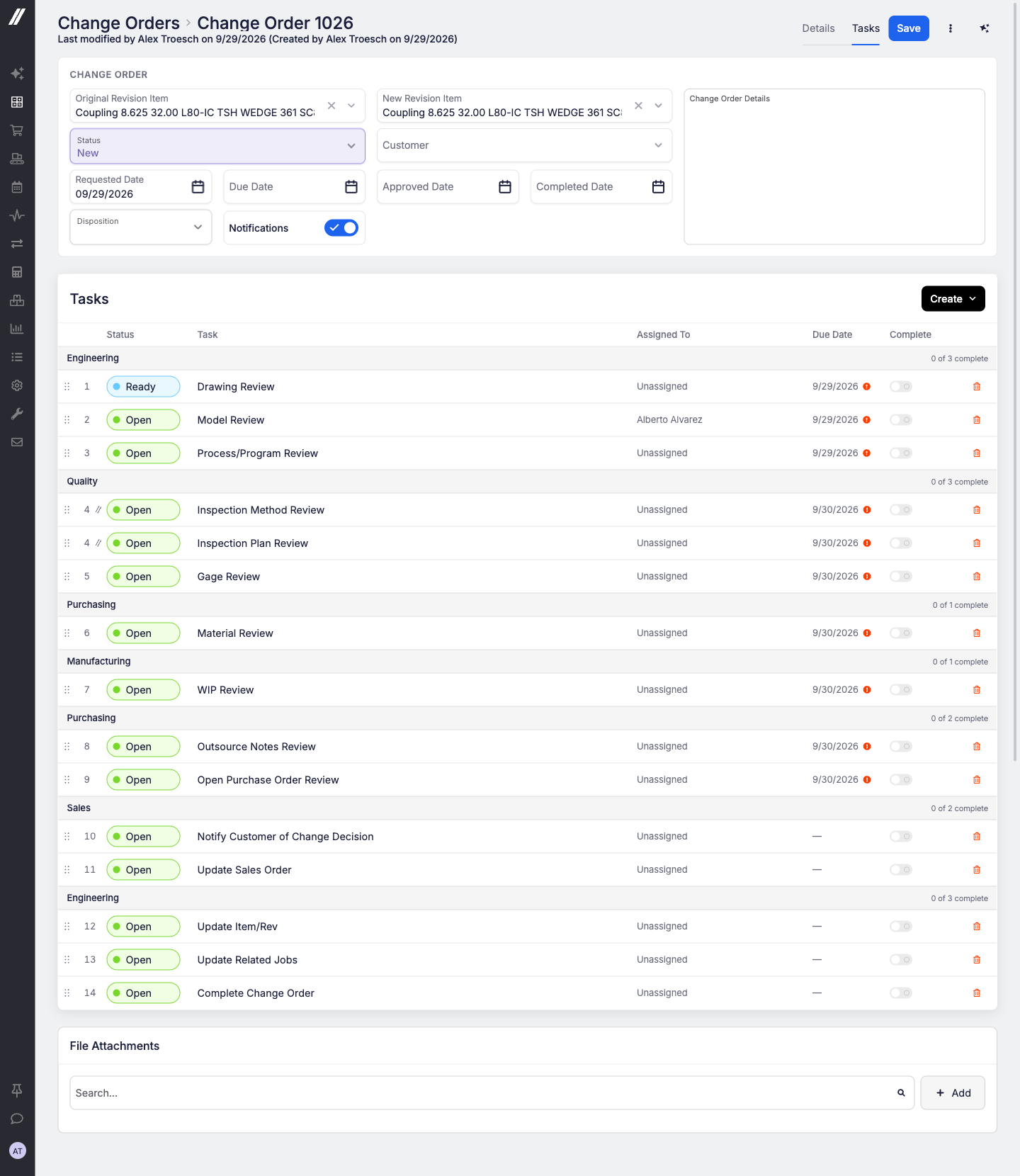
When a customer changes their mind mid-order, the work around that change (drawing review, engineering review, work-in-progress (WIP) review) can now run as a clear, step-by-step checklist right on the change order.
Tasks and templates
Notifications
Easier to manage
Reach out to our support team or your account manager and we'll turn it on for your shop.
 Share ->
System Data's left menu has a new AI section holding External Sources, Web Access and Agent Billing, moved out of Advanced. MCP API Keys and Connected Apps stay in Advanced but now turn up when you search for AI, Claude, ChatGPT or agent.
API tokens and assistant keys now have a maximum lifetime, so nothing lives forever by accident.
Deactivating a person now retires the assistant keys they created, so reactivating them doesn't bring old keys back, and lists the API tokens they made so you can review them.
Every data import now requires the right permission, and importing users is limited to Administrators.
Items: a file added or removed now counts as a change to the item, and the item list can be filtered by modified date. Input items support a fixed per-lot quantity. Material details (dimension units, shape type, density) and the unit cost Fulcrum would use are readable so nestings can be costed correctly.
Production: timer lists can be filtered by item, and each timer reports the system operation it belongs to. Equipment downtimes can be read, created, updated and deleted.
Orders: the sales order list filters by customer and customer purchase order number, quote capable-to-promise can be requested and read, and receipt lines report their purchase order cost, tax and landed cost.
Costing and nesting: costing and pricing settings, item cost breakdowns and job-operation audit details are readable, and the work order and nesting-setup writes are now documented in the public reference.

Exports that get it all: ask for "all purchase orders" or "all quotes" and Archie builds the full report. Ask for a download and you get the table you're looking at.
Warns before it writes: when a change has consequences (stock or cost postings, purchase orders, timers, deletes, work being re-ordered), Archie explains them in plain words and waits for your go-ahead.


