
Product Updates
Weekly updates to Fulcrum, always included with your subscription.
Thank you! Your submission has been received!
Oops! Something went wrong while submitting the form.

The Create A Work Order grid has a sortable Status / Scheduled Start column showing each operation's own status and, for Pending and Ready operations, when it's scheduled to start. Unscheduled operations sort last.

Canadian QuickBooks Online companies can have purchase order updates sent in real time, following your existing real-time updates setting.
Reach out to our support team or your account manager and we'll turn it on for your shop.
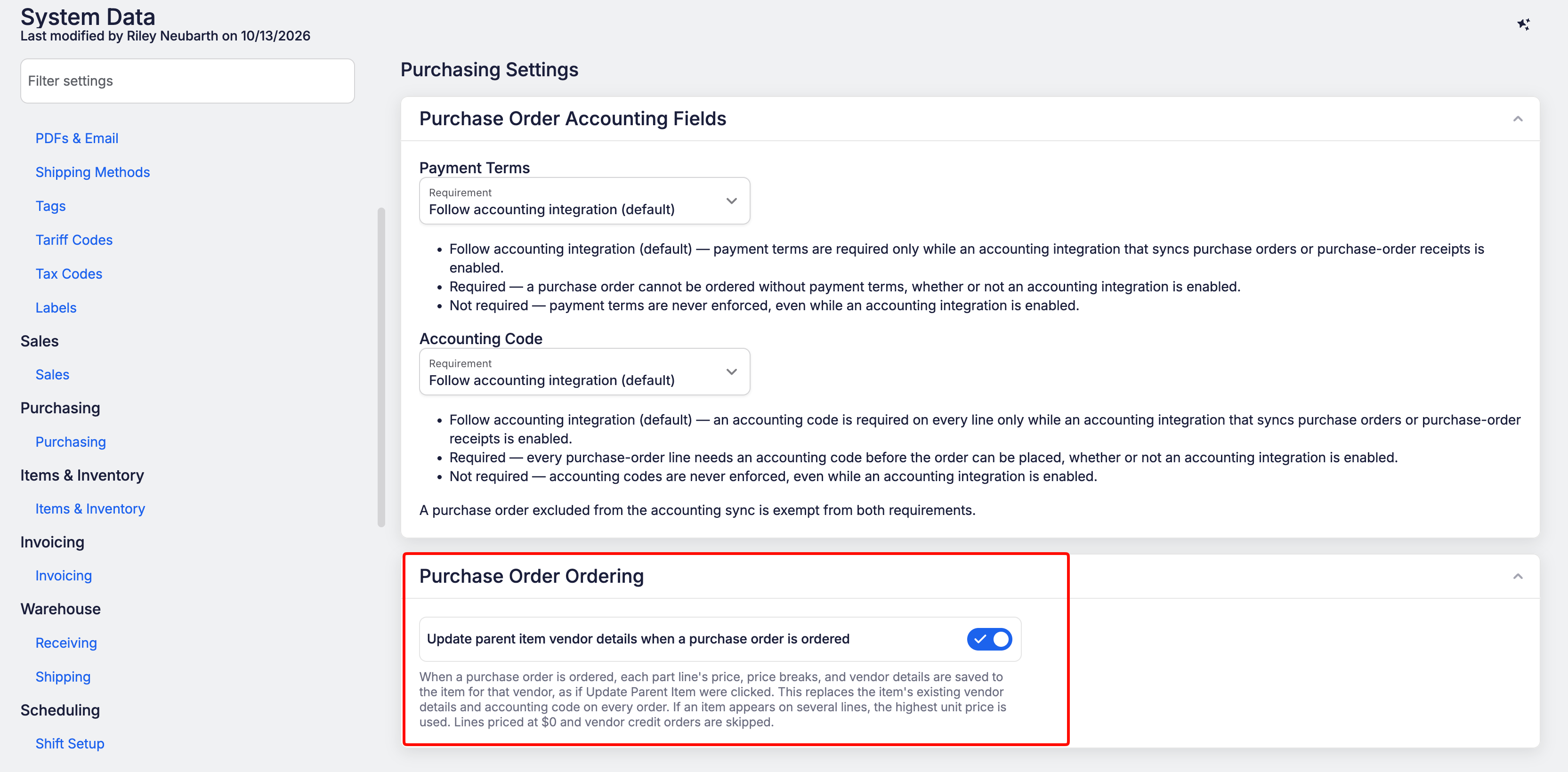
Tired of updating parent items by hand after ordering? Turn on the new setting in System Data → Purchasing and Fulcrum will update parent items (and material weight prices) when a purchase order (PO) is marked Ordered.
Don't see this yet? Reach out to our support team or your account manager and we'll turn it on for your shop.
 Share ->
Teams that automate repeat quotes through the public API can now edit the sub-assemblies on a quote line's routing, not just bought items.
A customer with a contact who has no last name used to be impossible to save. Now only the first name is required, everywhere you add or edit a contact: customer page, quotes, sales orders, spreadsheet import, and Archie.
If your prices are rounded, the numbers on your PDFs and the numbers sent to your accounting system need to match. They now do. Set your decimal pricing preference in System Data → Sales settings. It works with QuickBooks Online, QuickBooks Desktop, Sero, Sage 300, Sage 50, Salesforce and Dynamics GP. It does not apply to NetSuite, Acumatica, Avalara, ShipStation or HubSpot.
Don't see this yet? Reach out to our support team or your account manager and we'll turn it on for your shop.


Archie can now create, update and delete time entries for everyone with permission to edit their own job clocks. Your permissions and the rules Archie follows are unchanged.

Builder pages can now open an uploaded PDF, like a customer purchase order (PO) or a parts list, show it on screen, and pull its text into a table you can review before creating anything in Fulcrum. Works with PDFs that contain real text, not scanned images.

When you turn a PDF into a quality template under Quality → Templates, you no longer have to press Auto-Tag yourself. Click New Template, start from a PDF, and when you click Use this template, Fulcrum tags the fields for you, the same way it already does for Word uploads.
Quality Templates is part of Fulcrum Control. Using Control but don't see Templates under Quality? Reach out to our support team or your account manager.
The nonconformance report (NCR) grid's Excel download now includes Customer Impact Analysis Required and CAPA (corrective and preventive action) Required, so it covers every field in the Analysis panel.

Archie can now attach an uploaded file to a routing step when it builds one for you.
Archie's item search now finds sheet, plate, bar and tube sizes, and marks remnants, so asking about a material by its exact name returns the right item. Archie also won't add a raw material as a bill of materials (BOM) input by mistake.
A routing or bill of materials (BOM) change becomes the template for every future job of that item. Archie now states what it will change and waits for your OK first.

When a line shipped in more than one box, every box label listed every lot on the line, so you had to cross out the ones that weren't inside. Add the new {{boxPackingDetails}} variable to your packing label template, and each label lists only the lots, quantities and expiration dates packed in that box. Box labels also now print in box order. Templates you haven't changed print the same lots as before.


