
Product Updates
Weekly updates to Fulcrum, always included with your subscription.
Thank you! Your submission has been received!
Oops! Something went wrong while submitting the form.

Rolling a sales order line or a job to another revision of its item no longer requires a change order. A new Roll Revision entry on the sales order line's menu and the job's Update Options menu opens a dialog listing the item's other revisions and applies the roll in one step.
Change orders get an upgraded task list with reusable task templates and task groups, a header disposition field with a due date, new grid filters, and per-task notifications you can turn on or off.

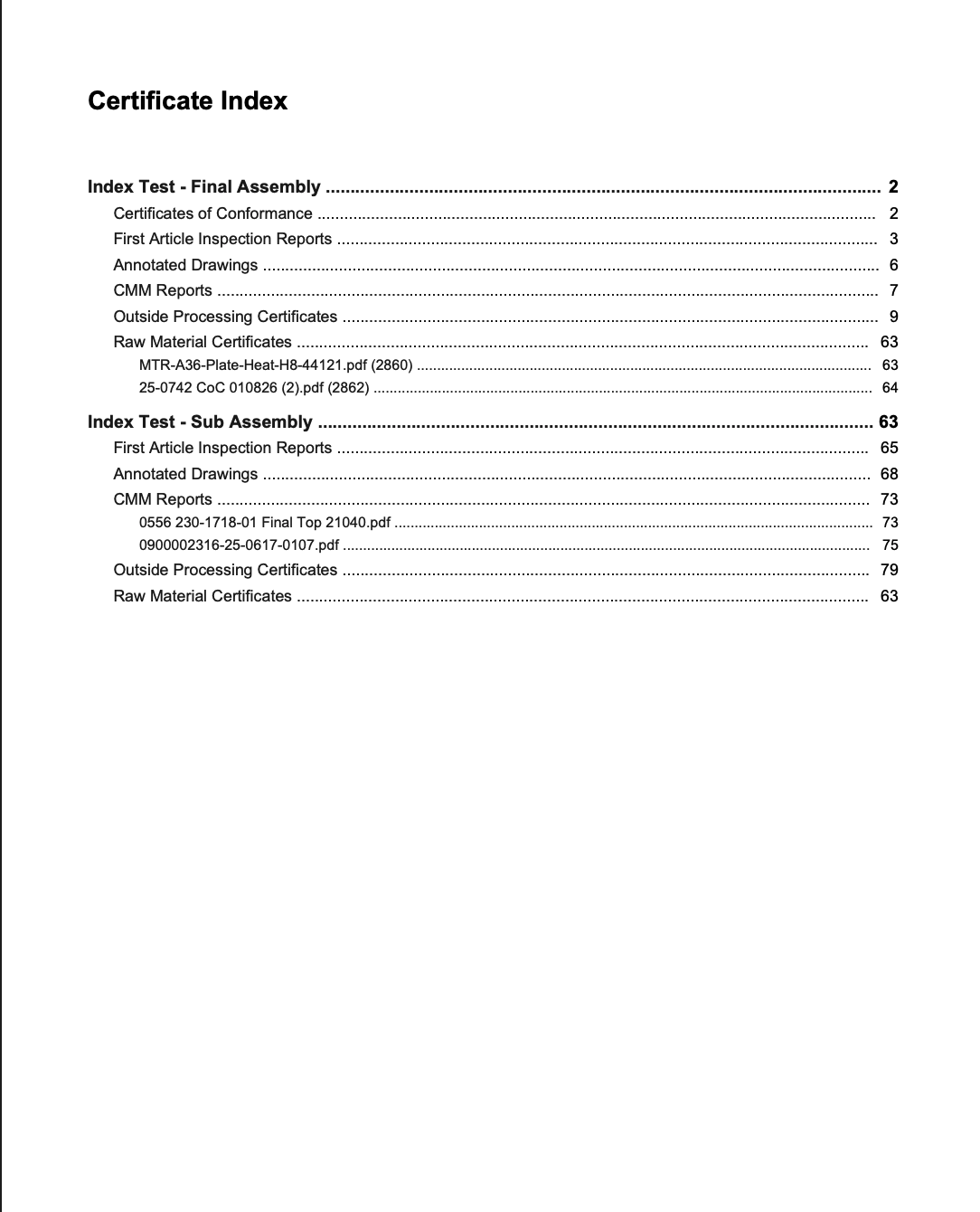
Printed certification packets on a job's Certs tab can now include a clickable index on the first page, with documents grouped by part in bill of materials order and filed under the part they belong to. Ballooned drawings now live on the Certs tab too, so you can review and print them alongside the rest of the quality packet.
 Share ->
Reference gauges rarely need to go out to a third-party lab, but they still need a periodic in-house check to prove they're still accurate. That check looks a lot like a calibration, but it isn't one. Only an accredited lab can perform an actual calibration, so the in-house check needs to be tracked differently.
Reference tools can now have their own optional verification cadence, separate from calibration. Verifications use the same templates, checkpoints, and measurement capture as calibrations, and they show up in the tool's history and drive its due date and status on the Tools grid.
This came out of feedback from a customer and their quality auditor.

Printing a label for a remnant from a work order's job card wasn't possible before, because the Print Label dropdown simply didn't list them. It now does: remnants from the work order and its nest show up alongside the job's own labels, and printing one pulls from your shop's item label template instead of falling back to a blank default.

The Purchase Planning grid can get cluttered with lines you're not ready to act on. You can now snooze or ignore them so the grid shows only what actually needs buying.
A couple of safety nets: a snoozed or ignored line resurfaces automatically if its recommended purchase quantity grows past what it was when you hid it, so a genuinely new need never stays buried. An indicator also flags any hidden line that still has open demand, so you can review it in one click.
This is rolling out gradually — reach out if you'd like early access.
Some jobs need to be billed in stages instead of all at once. With progress billing, you can now split a single sales order into several planned installments, say 20% up front, 30% at a milestone, and 50% on completion, and invoice each one as it's earned.
Reusable billing schedule templates live under System Data → Invoicing → Billing Schedule Templates, so you can set one up once and apply it to future orders.
Progress billing invoices sync to both QuickBooks Desktop and QuickBooks Online, and each installment's accounting code needs a matching QuickBooks item. We're rolling this out shop by shop — reach out if you'd like it turned on for your account.
Fulcrum now connects directly to Ryerson. Material costs sync from Ryerson daily, including current price breaks and delivery lead times, so the pricing you quote from is the pricing Ryerson is giving you today.
When you're ready to buy, send the order to Ryerson from the purchase order you're already working in. Delivery dates and status come back to that PO and flow into your planning. No switching between systems, no typing pricing onto a quote by hand, no downloading and re-uploading PO PDFs, and no manual follow-up to find out where an order stands.
Ryerson is the first of more supplier integrations to come.
Operators could enter a remnant bigger than the sheet it actually came from, say a 50x120 piece cut from a 48x120 sheet, and Fulcrum would warn but let it through anyway. That let job costing quietly drift out of sync with reality. Remnants are now checked against both dimensions and the total area of the original sheet, and an oversized remnant is blocked outright instead of just flagged.
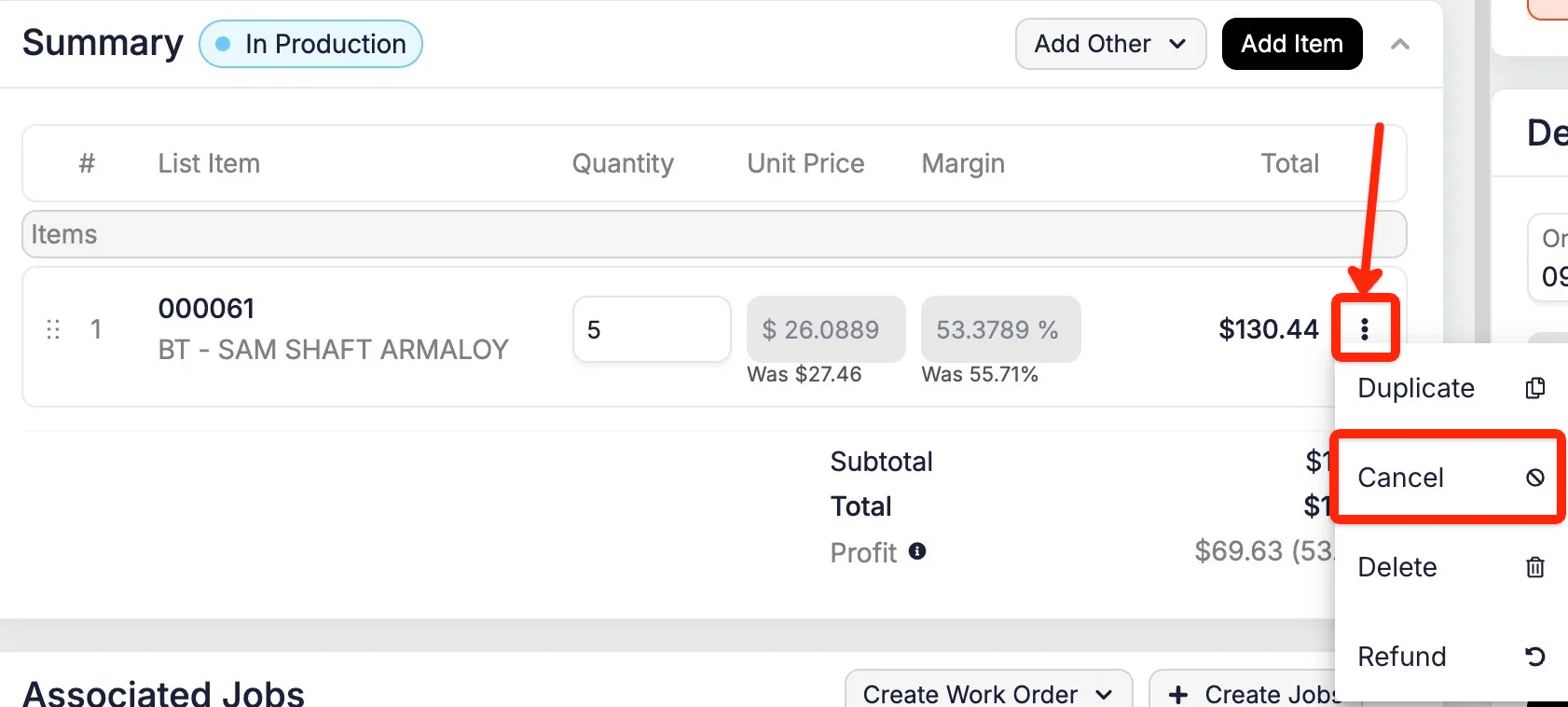
You can now drop a single line from a sales order without deleting the whole order. Mark the line as cancelled from its menu and the quantity goes to zero, so it falls out of demand planning, shipping, and invoicing prompts. A Cancelled banner appears on the line's details panel.
 Share ->
Downloading a document as a plain PDF used to mean unchecking a list of attached drawings and certs first. Miss one and you would get a .zip when you expected a .pdf. The main document still starts checked, attachments now start unchecked, and Select All is still there for when you do want the whole bundle.
You can now keep typing your next message in Archie chat, and in the Builder's author chat, while Archie is still streaming its response. The input no longer locks up until it finishes.
A broken webhook used to get retried on every single event, forever, whether its address had moved, broken, or just stopped answering. One webhook alone racked up over 170,000 failed delivery attempts in a month.
Fulcrum now pauses delivery to a webhook after it keeps failing, still sends it one event a day to check whether it is back, and turns delivery back on automatically the moment that check succeeds. You can also re-save the webhook any time to reset it yourself. Paused webhooks show their status right in the admin grid.
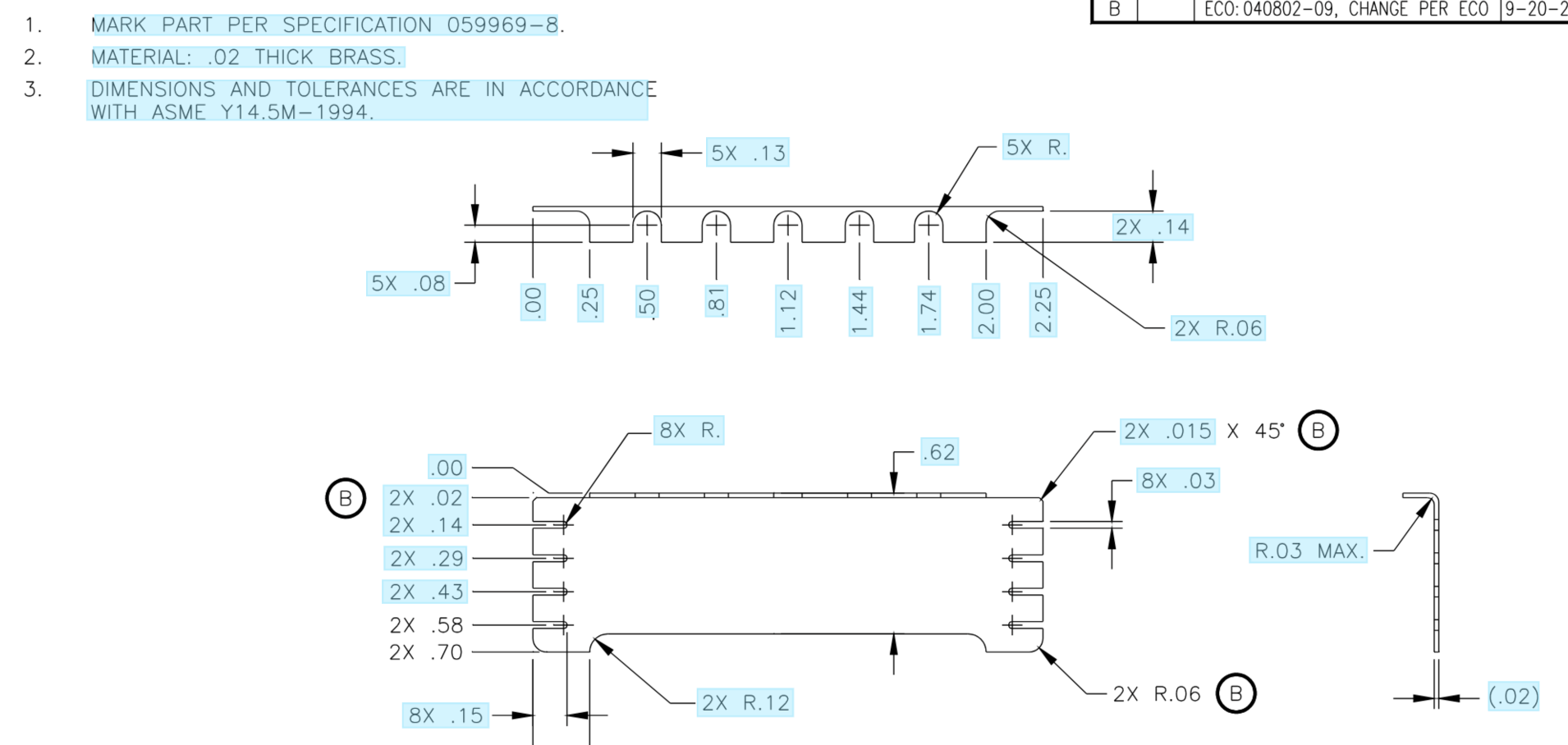
Auto-Bubble now recognizes more of what is on your drawings:
Reference features are common but not every shop wants them bubbled, so this is a per-drawing choice rather than an all-or-nothing default. General notes vary widely in how they're drawn, so recognition there keeps improving.
 Share ->
The Shipping report now includes a Customer Item Number column, so you can match a shipped line back to the number your customer uses without cross-referencing another screen.


