
Product Updates
Weekly updates to Fulcrum, always included with your subscription.
Thank you! Your submission has been received!
Oops! Something went wrong while submitting the form.

Real Time Operations now shows the operation order number alongside each running operation.
Time Management gets a Download Production Timers for Import action that exports stopped Setup and Labor job time records with editable started/stopped date and time columns, so you can correct timers in bulk and import the results back in.
Jobs can now carry a configurable short code as part of their name.
An integrator's nesting software can now submit the nest it planned for a work order operation, and Fulcrum reconciles it the same way saving from the internal nest editor does.

A cost line's vendor now carries its currency code and lead time, so that information is available wherever the cost line is shown.
Purchase orders get an admin setting for whether payment terms and accounting codes are required, mirroring the existing Sales Setup pair. Each one can follow your accounting integration by default, or be set to always required or never required.
Purchase order PDFs can now combine duplicate line items instead of listing each one separately.
When received material is picked to a job and only part of it comes back to the shelf, the receipt couldn't be reverted at all. A new Revert Quantity action on the receiving page lets you revert just the quantity that's actually coming back.
Purchase Planning didn't know work orders existed, so it told you total demand for each job separately, forcing you to over-buy or make frustrating calls to the nesting manager. Now Purchase Planning looks at work orders, so if nesting lets you fit multiple jobs' parts on one sheet, Purchase Planning knows you only need to buy that one sheet.
Rolling out over the next few weeks. If you don't see it yet, it's coming.
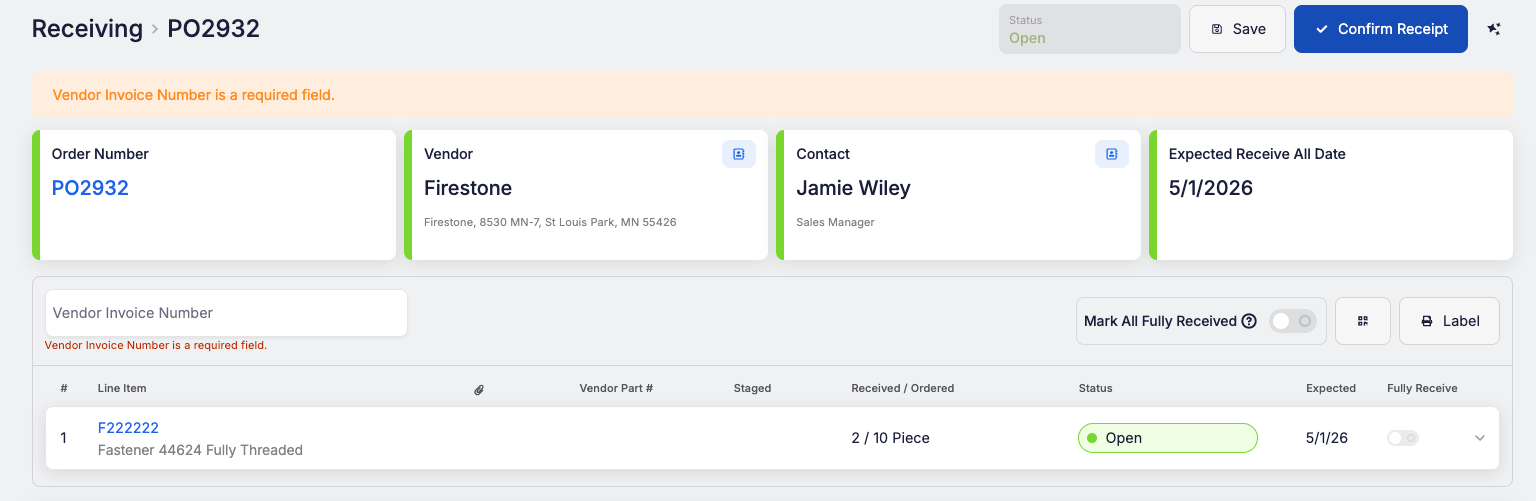
Receiving Settings has a new setting: Require Vendor Invoice Number (PO). When it's on, confirming receipt on a purchase order needs a vendor invoice number, and Fulcrum shows a message until you enter one. Saving doesn't require it, and customer-supplied receiving doesn't show the field at all.
 Share ->
Rolling a sales order line or a job to another revision of its item no longer requires a change order. A new Roll Revision entry on the sales order line's menu and the job's Update Options menu opens a dialog listing the item's other revisions and applies the roll in one step.
Change orders get an upgraded task list with reusable task templates and task groups, a header disposition field with a due date, new grid filters, and per-task notifications you can turn on or off.

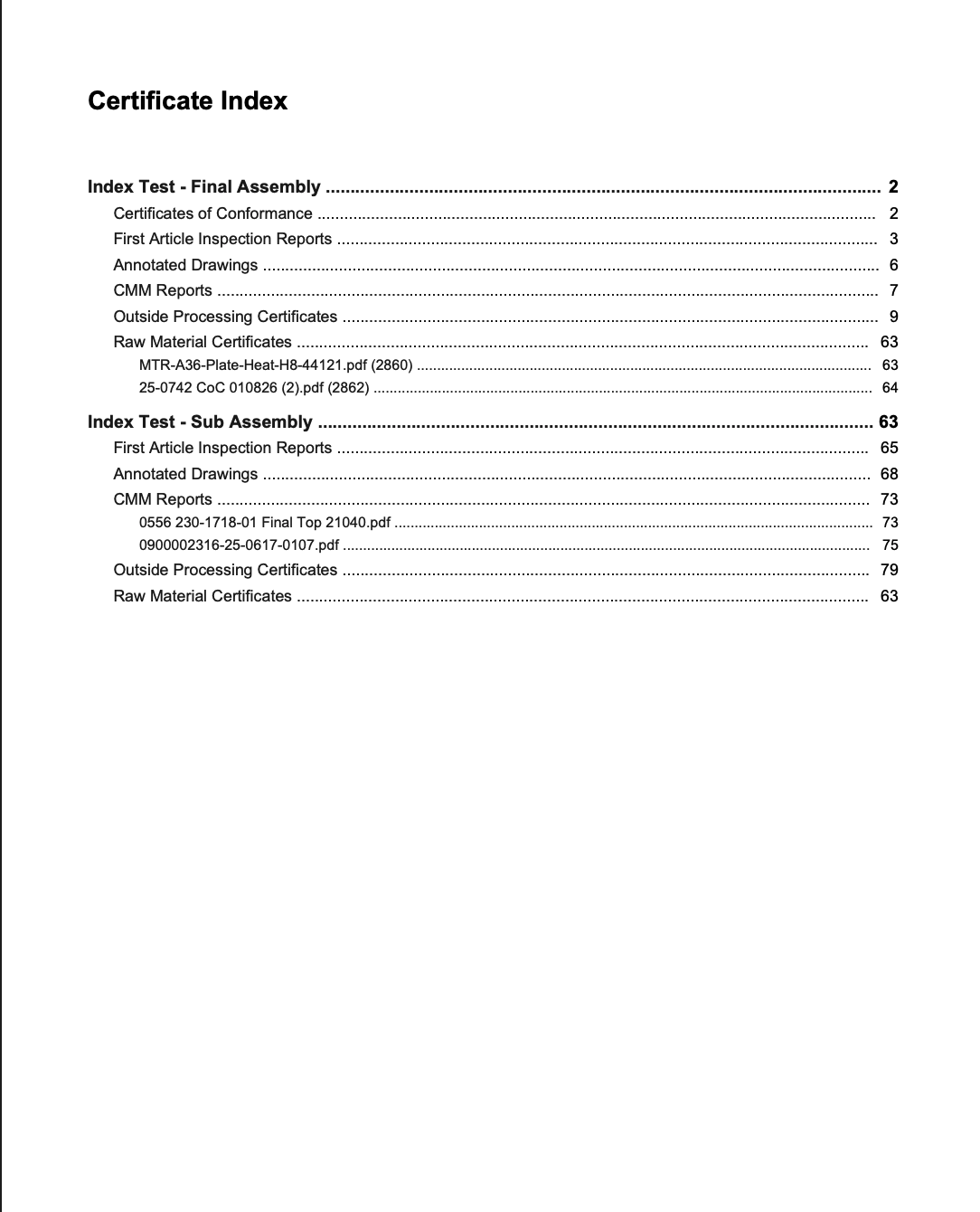
Printed certification packets on a job's Certs tab can now include a clickable index on the first page, with documents grouped by part in bill of materials order and filed under the part they belong to. Ballooned drawings now live on the Certs tab too, so you can review and print them alongside the rest of the quality packet.
 Share ->
Reference gauges rarely need to go out to a third-party lab, but they still need a periodic in-house check to prove they're still accurate. That check looks a lot like a calibration, but it isn't one. Only an accredited lab can perform an actual calibration, so the in-house check needs to be tracked differently.
Reference tools can now have their own optional verification cadence, separate from calibration. Verifications use the same templates, checkpoints, and measurement capture as calibrations, and they show up in the tool's history and drive its due date and status on the Tools grid.
This came out of feedback from a customer and their quality auditor.
Printing a label for a remnant from a work order's job card wasn't possible before, because the Print Label dropdown simply didn't list them. It now does: remnants from the work order and its nest show up alongside the job's own labels, and printing one pulls from your shop's item label template instead of falling back to a blank default.


